Access 201: Zero Trust - Identity Aware Proxy > Class - Access 201: Zero Trust - Identity Aware Proxy > Module 3 - HTTP Connector Source |
Lab 3.1 - Create the HTTP Connector Request
The HTTP Connector is made up of two parts. The first part is called the HTTP Connector Transport and it defines settings related to SSL, DNS, timeouts, and payload sizes. The second part is the HTTP Connector Request which contains specific details such as HTTP Method, URL, message body, and how to handle the HTTP responses.
Task - Create a DNS Resolver
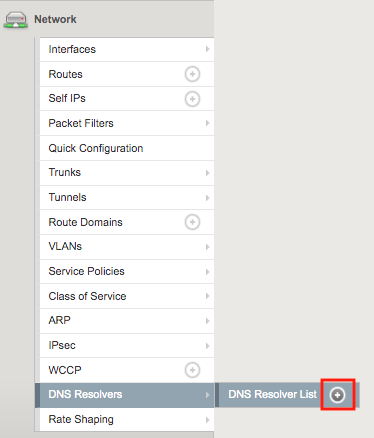
Navigate to Network >> DNS Resolvers >> DNS Resolver List. Click the + Symbol
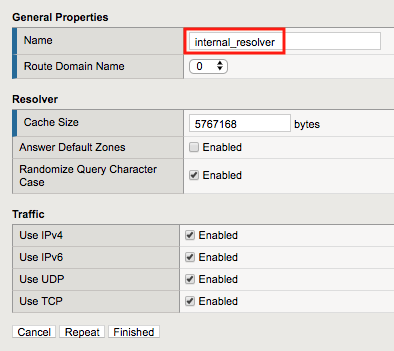
Enter Name internal_resolver and click Finished
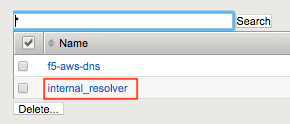
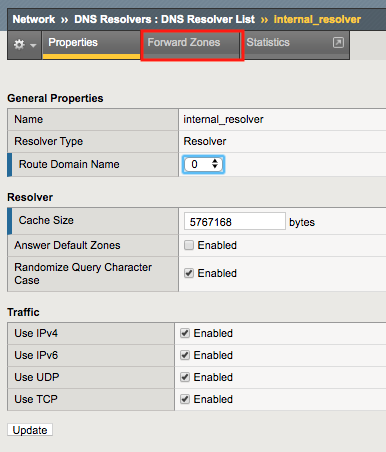
Click internal_resolver
Click the Forward Zones tab
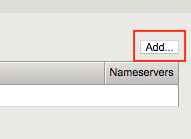
Click Add
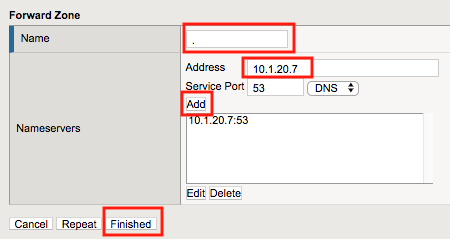
Enter . (a Single dot) in the Name field
Add a Nameserver by entering Address 10.1.20.7 and click Add
Click Finished
Task - Create a ServerSide SSL Profile
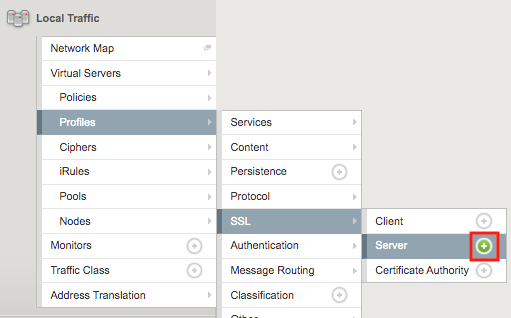
Navigate to Local Traffic >> Profiles >> SSL >> Server. Click the + Symbol
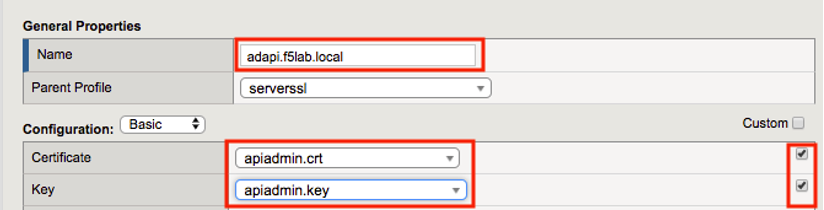
Enter Name adapi.f5lab.local
Check Custom box to the right of the Certificate and Key fields to make them editable.
Select apiadmin.crt from the Certificate dropdown
Select apiadmin.key from the key dropdown
Click Finished at the Bottom of the page
Task - Create a HTTP Connector Transport
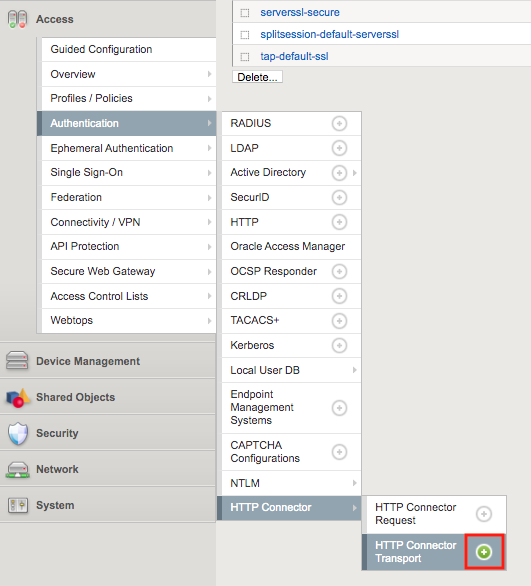
Navigate to Access >> Authentication >> HTTP Connector >> HTTP Connector Transport Click the + (Plus Symbol)
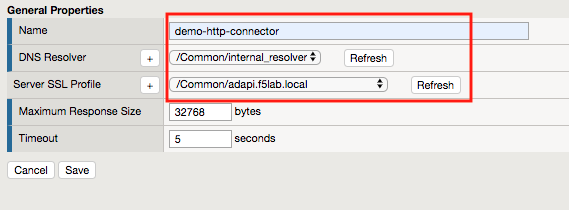
Enter the name demo-http-connector
Select internal_resolver from the DNS Resolver dropdown
Select adapi.f5lab.local from the Server SSL Profile
Click Save
Task - Create a HTTP Connector Request
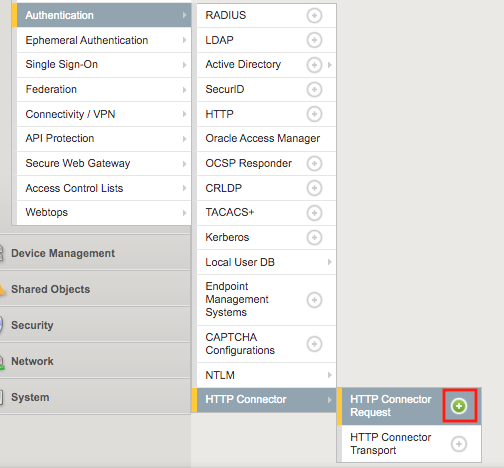
Navigate to Access >> Authentication >> HTTP Connector >> HTTP Connector Request. Click the + (Plus Symbol)
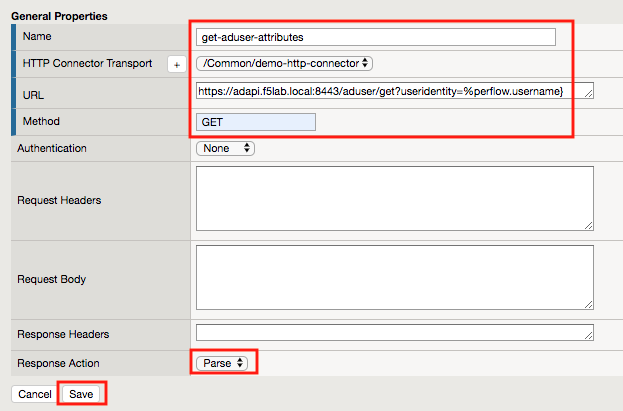
Enter name get-aduser-attributes
Select demo-http-connector from the dropdown
Enter URL https://adapi.f5lab.local:8443/aduser/get?useridentity=%{perflow.username}
Enter GET for the Method
Select Parse for the Response Action
Click Save