Access 201: Zero Trust - Identity Aware Proxy > Class - Access 201: Zero Trust - Identity Aware Proxy > Module 3 - HTTP Connector Source |
Lab 3.2 - Add HTTP Connector to the IAP Policy
Now that the HTTP Connector Request has been defined you will add it to basic-iap.acme.com application and test.
Task - Add the HTTP Connector Request
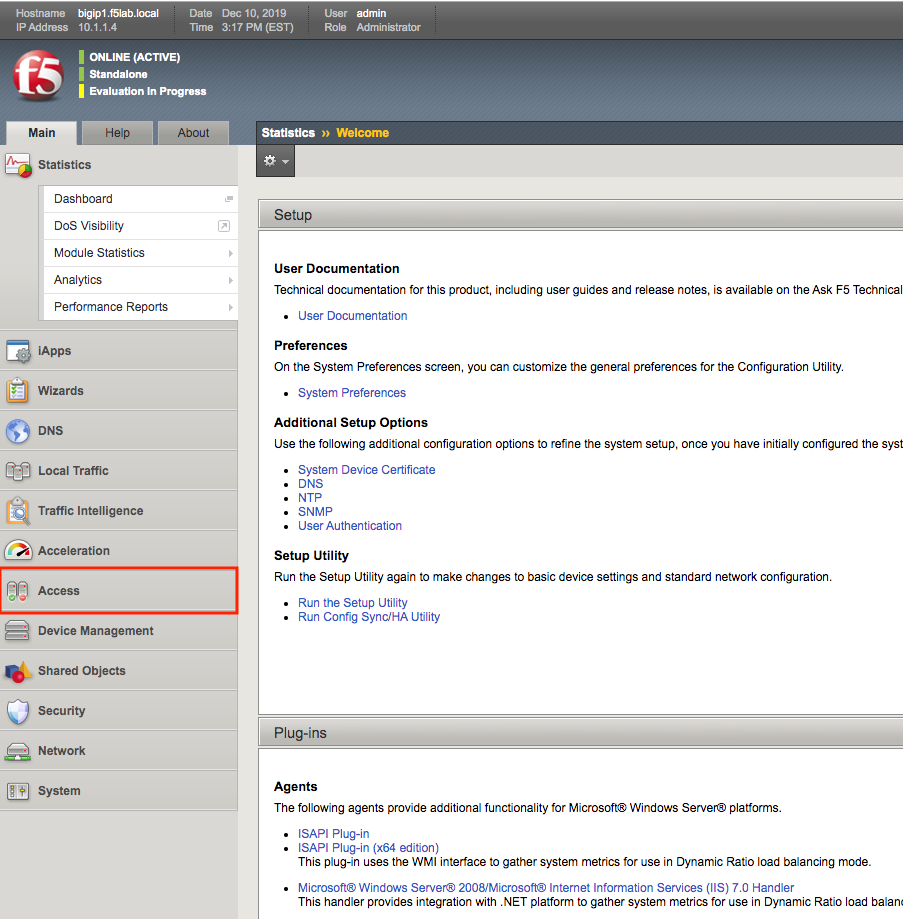
From the web browser, click on the Access tab located on the left side.
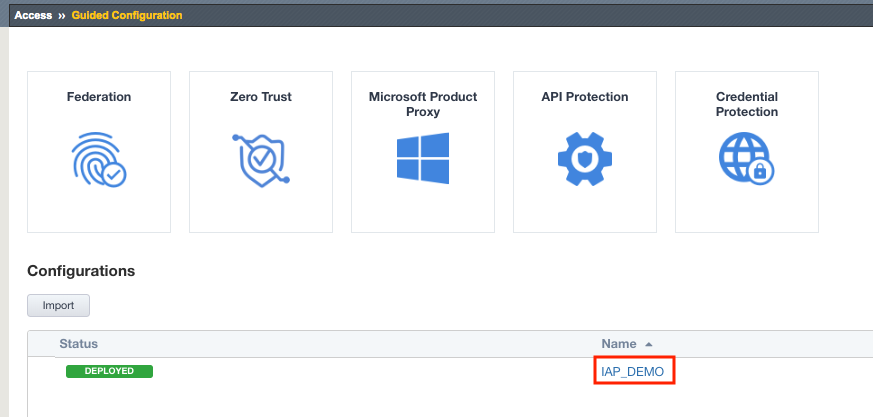
Click Guided Configuration
Click IAP_DEMO
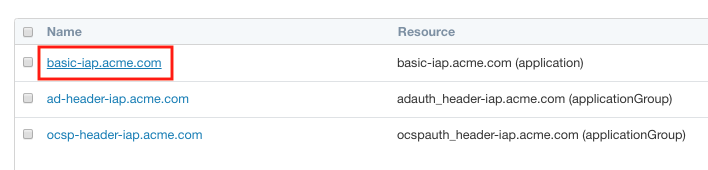
Click on Contextual Access

Click on basic-iap.acme.com
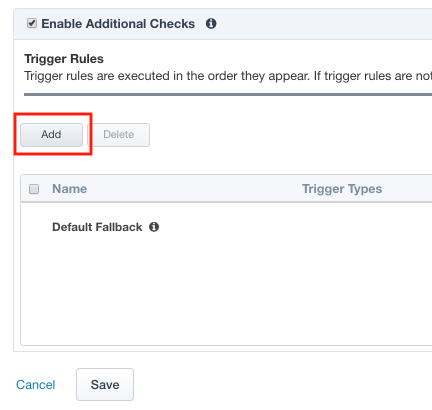
Click Add under Trigger Rules
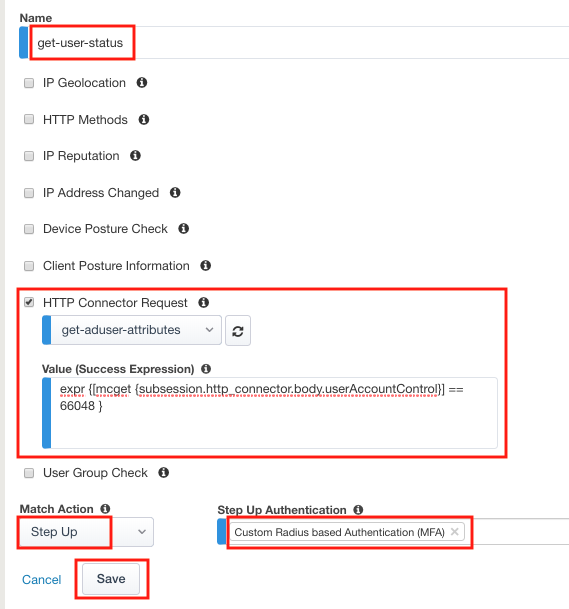
Enter Name get-user-status
Check HTTP Connector Request
Select get-aduser-attributes from the HTTP Connector Request dropdown
Under Value (Success Expression) enter expr {[mcget {subsession.http_connector.body.userAccountControl}] == 66048 }
Select Step Up from the Match Action dropdown
Select Custom Radius based Authentication (MFA) from the Step Up Authentication field
Click Save
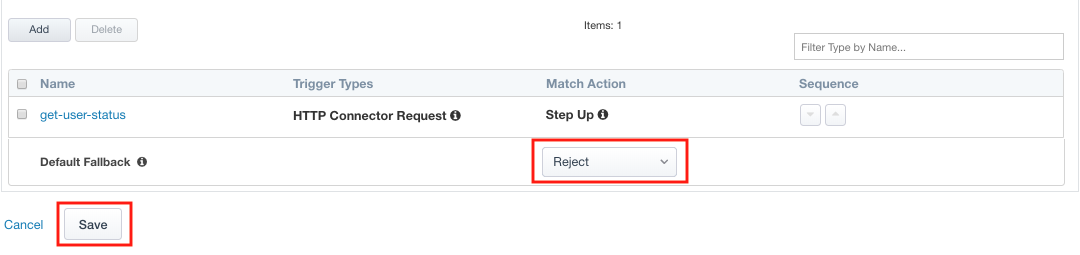
Change the Match Action field for the Default Fallback rule to Reject
Click Save
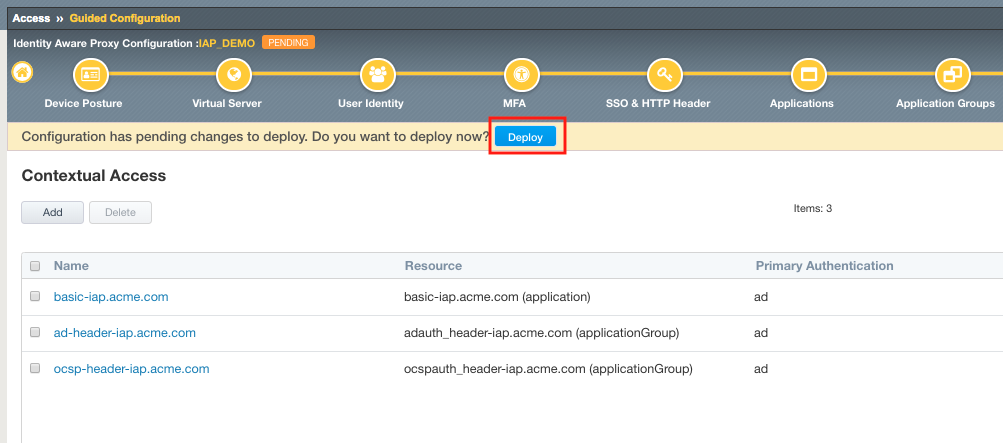
Click Deploy. Deployment will take a few moments.